Your photo. The Bulin 47 freestyle. Two ways to make it.
Bulin 47 AI prompt: put yourself in the freestyle
Want your own Bulin 47 freestyle? Upload a photo to our generator: no prompt to write, no clip to find, and the original sound is included. Prefer making it yourself? Copy the prompt below and follow the Media.io workflow.
Choosing a photo uses no credits. Generation requires an account and purchased credits. You can read and copy the manual prompt for free.
01 / The prompt
Copy this Bulin 47 character-replacement prompt
Paste this into Media.io’s Reference to Video editor after adding one character photo and one short performance clip. Use a model that accepts both references; the current editor opens with Seedance 2.5.
This is a starting prompt for a manual edit. We checked the public editor and input controls on October 12, 2026; we have not completed a generation test of this prompt in Media.io.
Bulin 47 character-replacement prompt
Use @Video1 as the performance reference and @Image1 as the replacement person's appearance.

Replace only the lead rapper wearing black sunglasses and an open light-pink shirt, standing behind the person holding the portable speaker. Use the face, hair, body shape and clothing shown in @Image1. The pink shirt and sunglasses identify the original target; do not put them on the replacement unless they appear in @Image1.

Follow the reference clip's gestures, head turns, shoulder movements, expressions, action order and timing. Keep the same replacement identity and outfit when the person turns or reappears after an obstruction.

Keep the speaker holder and the other people in their original roles. Preserve the portable speaker, background, lighting, camera movement and framing. Do not replace a bystander, add people, change the scene or add cuts. Do not add captions, logos or watermarks. Follow the source mouth movements without inventing dialogue or new lyrics. The original soundtrack will be added separately after generation.Our generator needs just your photo. The reference clip and original sound are already prepared.
Upload a photo — no prompt neededThe prompt uses @Image1 for your photo and @Video1 for your clip. After uploading, check the labels shown in the editor and use its reference picker if available. If it assigns different labels, replace these two names throughout the prompt before generating.
This target description is for the familiar clip with a rapper in sunglasses and an open light-pink shirt behind a speaker holder. For another clip, rewrite that description to identify the person you actually want to replace.
Open Media.io’s reference-to-video editor02 / Photo to freestyle
Just bring your photo. We handle the setup.
Our generator already has the Bulin 47 reference, instructions and soundtrack ready. Here is a real result made with our preset. Your result will vary with your photo.
- No prompt to write or paste.
- No reference clip to find, trim or upload.
- The original sound is included in the finished MP4.
To use the prepared workflow, open the Bulin 47 AI template without a prompt and choose your photo.
Upload a photo — no prompt neededChoosing a photo uses no credits. Sign in and purchase credits to generate; review the one-time packs first.
The video was regenerated on October 12, 2026 using a previously prepared character reference. See the intermediate image and recorded method. That run tested the video and assembly stages; it did not regenerate the character sheet from the original photo in the same run. One example does not establish a success rate.
To take this route, upload your lead photo in our generator. The photo-to-video tutorial explains the upload and download steps. Generating requires an account and purchased credits; check current pricing before submitting.
How our preset differs from the manual route
Our implementation prepares a multi-view character image, generates two video segments and assembles them with the source soundtrack. Those internal instructions and settings are specific to our backend. They are not fields a Media.io user needs to enter. The preset method record explains this separate workflow.
03 / Your files
Prepare one photo and one short reference clip
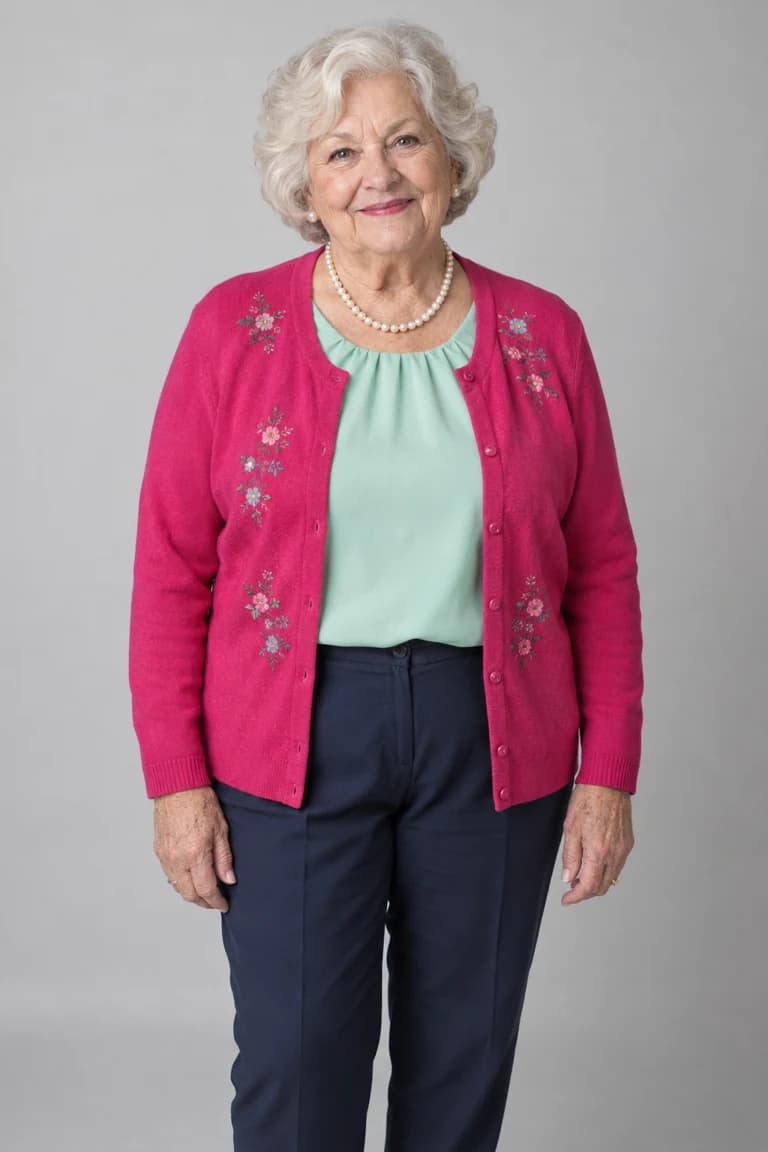
A clear photo of your replacement person
Use one person, with the face, hair and upper body visible in even light. Choose the clothes you want to appear in the result. Avoid sunglasses, a covered face and group photos. Start with a normal portrait; this manual route does not ask you to create a seven-view character sheet. A cropped selfie also gives the model less information about the body and outfit.
A five-second performance excerpt
For your first attempt, choose about five seconds where the lead rapper and the speaker holder are easy to distinguish. Keep the full vertical frame. Prefer a single shot with the lead visible at the beginning and end; avoid a stretch dominated by foreground phones, shoulders or a fast camera turn.
The credited Kevin Wai TikTok post helps you identify the reference and the intended lead. Use a source file you are entitled to edit; a public viewing link does not supply that permission. This tutorial does not provide a downloadable original clip.
In a video editor such as CapCut, import your source, split at the beginning and end of the excerpt, and export only that section. Keep a copy with its original sound. Note the excerpt’s starting point so the final audio matches the same moment. You do not need the full 23-second performance for a first test.
Keep the matching soundtrack for the final edit
The basic prompt uses a photo and a video reference, not a separate audio file. Keep the source excerpt so you can extract its sound later. An audio-reference upload, if your chosen mode offers one, is a different input and does not prove the output will contain the unchanged recording.
A text prompt cannot reconstruct the original performance from its name. Get a suitable reference first, or use our prepared Bulin 47 preset, which already includes the reference and soundtrack.
04 / The browser workflow
Where to paste the prompt and how to generate
Use the reference-to-video route below, rather than text-to-video or a face-swap filter. The tool needs to see both who should appear and which performance to follow.
- 1
Open Reference to Video
Open Media.io’s editor. Stay on Reference To Video under Create Video. The public interface currently shows Seedance 2.5. If your account opens a different model, select one whose upload controls accept both an image and a video. An image-only mode cannot follow the supplied performance clip.
- 2
Upload the photo and the excerpt
Use Upload to add your character photo and the five-second video file. Confirm both appear as reference assets, not just as files in your library. Check which label belongs to each. Upload only one replacement person for this first attempt; the prompt intentionally keeps the speaker holder and the crowd.
- 3
Paste the prompt into the video description
Copy the prompt above into the large description field below the reference uploads. Match its @Image1 and @Video1 names to the editor’s assigned references. Check the target description against your source. Do not paste the instructions into a chat assistant or the platform’s image generator.
- 4
Choose a short draft and generate
Start with a five-second output and 480P, if those options are available, to inspect the edit before spending on a longer version. Choose 9:16 when the source is vertical and the mode offers that setting; otherwise use Auto and inspect the framing. Review the credit charge, sign in if required, then select Generate. Save the downloaded result before relying on the platform to retain it.
- 5
Restore the source sound and export
Import the generated result and the same source excerpt into CapCut or your usual editor. Extract or separate the source excerpt’s audio, keep that track, and remove the source picture from the final sequence. Mute any unwanted generated soundtrack. Align the original audio to the generated video’s start, check the ending and mouth timing, then export the vertical MP4. Adding the correct soundtrack does not repair inaccurate mouth movements.
- Editor
- Media.io → Create Video → Reference To Video
- Model
- Seedance 2.5 is currently shown; confirm photo and video reference support
- Uploads
- One character photo + one short performance clip
- First draft
- About 5 seconds of source and 5 seconds of output, where supported
- Resolution
- 480P for the first check; choose a higher resolution after reviewing it
- Frame
- Keep the source’s full vertical composition; 9:16 or Auto as supported
Read the charge shown in your account. Model, duration, resolution, region and account settings can change. Copying this prompt does not include generation credits or promise a free finished video.
05 / Before you post
Check what actually changed
- The right person. The main rapper should change. The foreground speaker holder should keep their face and role.
- Face and clothes. Pause at the opening, a head turn and any reappearance. Compare the face, hairstyle and outfit with your photo.
- Performance timing. Check that gestures and shoulder movements follow the excerpt instead of becoming a new dance or looping.
- The surrounding scene. Look for changes to the crowd, speaker, hands and foreground objects. A successful subject change can still include unwanted background edits.
- The sound. Listen to the entire export. Check the start, ending and mouth timing; the original audio may be correct while the lips are not.
If your first attempt goes wrong
It replaces the speaker holder: Check that the photo and video labels are not swapped. Make sure the rapper is visible in the selected excerpt. Rewrite the target using visible position and clothing rather than simply “the man.”
It keeps the pink shirt or sunglasses: Use a photo that shows your intended outfit and reread the distinction between target identification and replacement appearance. Do not describe the source outfit as the new character’s clothes.
It invents a new street or performance: Confirm you uploaded a video reference in Reference To Video. A text-only or image-only generation cannot use a clip it never received.
The output is silent or has different music: Use the matching source excerpt in your editor and restore its soundtrack as described above. Do not add “keep original audio” to the prompt and assume it guarantees an unchanged recording.
These are input checks, not tested fixes or a guarantee of success. Review the charge and the platform’s failure policy before another attempt. Repeating a longer prompt does not overcome an unsupported editing mode.
Want a new freestyle scene instead?
That is a different task. Dreamina’s Bulin 47 guide offers prompts for original street-freestyle recreations. Use that route if you want a new setting and performance; it is not an exact remake of the original clip or its soundtrack. The replacement prompt above expects a source video.
Sources and verification
- Media.io Reference to Video: current upload and generation controls
- Media.io’s Bulin 47 guide: reference-based character replacement
- CapCut: extracting the source clip’s audio
- Our preset: input image, intermediate reference and method
Platform links and the public editor were checked on October 12, 2026. The manual prompt is untested in Media.io; the displayed video is a separate preset result. No external-platform success rate or exact lip-sync claim is made.
