How to make the Bulin 47 AI video with your own photo
Your photo supplies the character. The original clip supplies the performance. Here is how to bring the two together—and what to check before you share it.
To make a Bulin 47 AI video on bulin47-ai.com, upload one clear lead photo, choose Original crowd and select 480p or 720p. Confirm permission, sign in and submit the preset, then review and download the MP4 with original sound. Custom crowd is optional and requires four additional photos. The performance reference and instructions are built in.
The Bulin 47 AI trend remixes the street freestyle featuring Bulin 47 and Kevin Wai. In a character-replacement version, a new performer takes the lead role while the original clip guides the gestures, camera movement and timing. It is a specific performance edit, rather than a general request to make someone rap.
In the source, the lead wears sunglasses and an open pale-pink shirt, behind the person holding the portable speaker. Your photo provides the new face, hair, build and outfit. Original mode aims to retain the speaker holder and crowd. Custom mode also replaces the four people assigned to the crowd-photo slots. In either mode, generated details can still shift.
If you want to appear inside the recognizable original freestyle, choose a workflow that uses that performance as a video reference. A text prompt and a portrait alone do not specify its exact gestures, camera path or crowd. An ordinary editing template can arrange your footage, but that operation alone does not recast the performer.
Choose by the result you want, rather than the name of the app.
Method
What you prepare
What to expect
Bulin 47 preset on this site
One lead photo for Original mode. Custom adds four crowd photos. The source and instructions are supplied.
A replacement lead with the original crowd, or a Custom cast for four surrounding roles. Choose 480p or 720p.
A character image and a street-freestyle prompt; compatible references where supported.
An inspired recreation. Its guide explicitly does not provide a verified exact Bulin template or original soundtrack.
An ordinary CapCut edit
Your footage and a compatible editing template, or a manual timeline.
Edited footage. Check what the specific template does; a normal montage is different from AI character replacement.
This is a workflow comparison, not a ranking of generation quality. The external methods have not been tested side by side here. Model access, prices and template availability can change.
03 / From photo to video
Make your Bulin 47 AI video in five steps
Start with your own photo or a consenting adult’s photo. Choose an image you have permission to use. This preset does not accept celebrity or public-figure photos. Original mode replaces the lead only; Custom mode adds four assigned crowd roles. It does not let you replace an arbitrary number of people or choose a new source performance.
01
Choose one clear character photo
Use a JPG, PNG or WebP image no larger than 10 MB. Show one adult with a readable face, visible hair and upper body, and the outfit you want in the video. Original mode needs only this lead photo. Custom mode also needs four separate single-person crowd photos, each within the same file limit. Convert an iPhone HEIC photo to JPG before uploading.
One personClear eyesEven lightOutfit visible
02
Open the preset and check your photo
Open the Bulin 47 AI generator on bulin47-ai.com and add your photo. Check that the preview shows the intended person and clothing. The performance reference and instructions are already supplied; you do not need to download the original clip or film the moves.
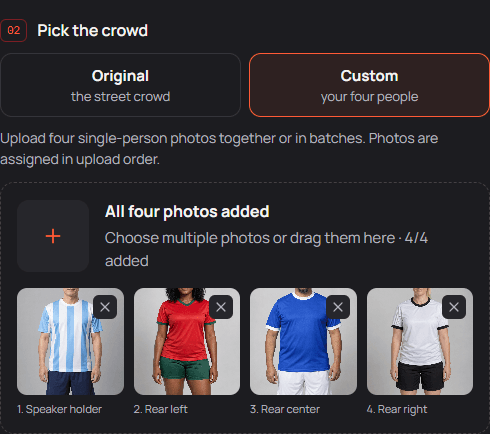
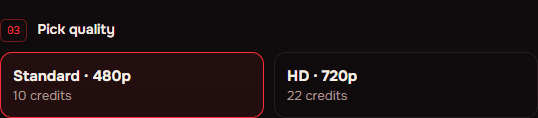
Choose Original to keep the surrounding people, or Custom to replace four assigned crowd roles. In Custom mode, upload four single-person photos in this order: Speaker holder, Rear left, Rear center, Rear right. Check the role labels before submitting; changing the order changes who takes each role. Standard 480p costs 10 credits and HD 720p costs 22 credits, in either crowd mode. Review your balance and the current pricing before submitting; adding photos only prepares a local preview.
Custom mode: four separate fictional-character photos assigned in upload order. This is a setup screenshot, not a generated Custom result.Choose the quality and read its credit cost before submitting.
Local photo preview is not a free generated video. A submitted generation uses credits. Compare current credit packs and plans before purchasing.
04
Confirm permission, sign in and generate
Confirm that you have permission to use every photo and that everyone depicted is an adult. Custom mode requires permission for all five people, not just the lead. Choose Make my video, sign in when prompted and submit from the generator. Wait for the task status to change through character preparation, rendering and original-sound assembly. Check the existing task rather than starting another paid attempt while it is processing.
05
Review the full clip and download the MP4
Play the completed result with sound. Check the lead's face, outfit, turns, foreground crossings and ending. Use Download MP4 with sound below the finished video. You can also find saved tasks in My creations. The output is a roughly 23-second vertical clip; it uses the source audio, not a recording of your voice.
You do not need to wear the source performer’s pink shirt or sunglasses. Those details identify the person being replaced. Show the clothing you want on your replacement character; a tightly cropped face gives less information about the rest of their appearance.
04 / Follow the complete workflow
From one portrait to a complete video
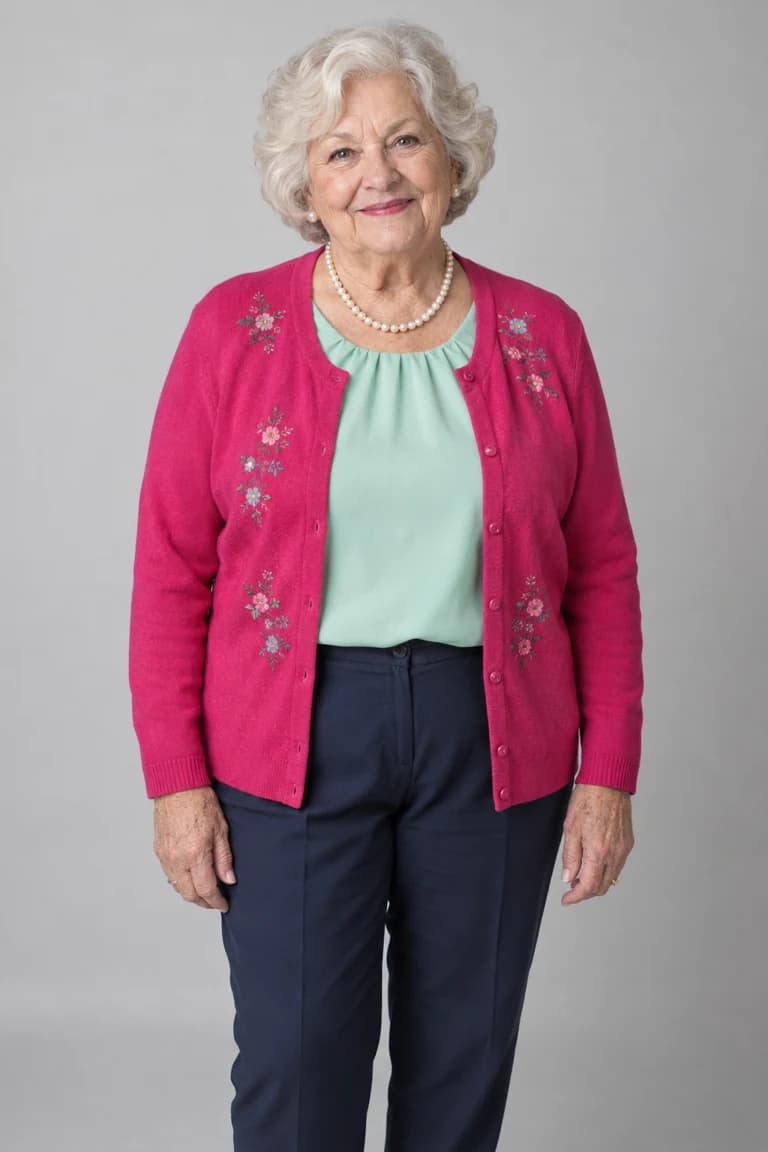
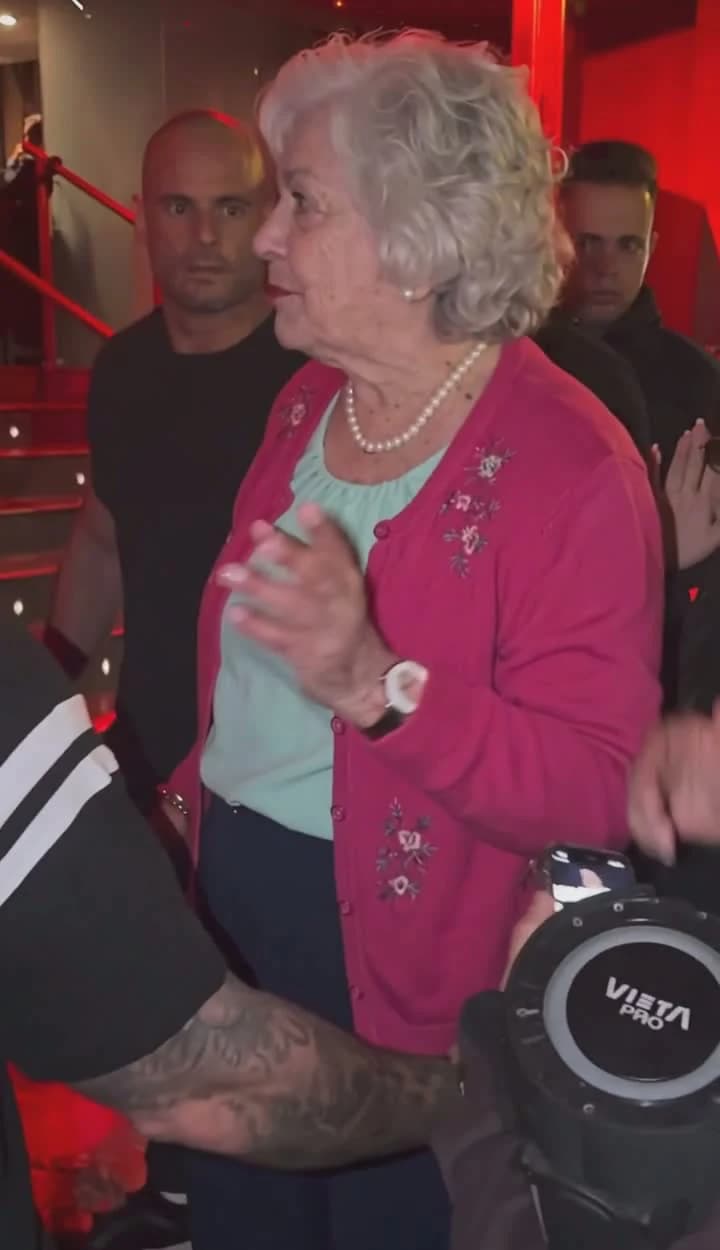
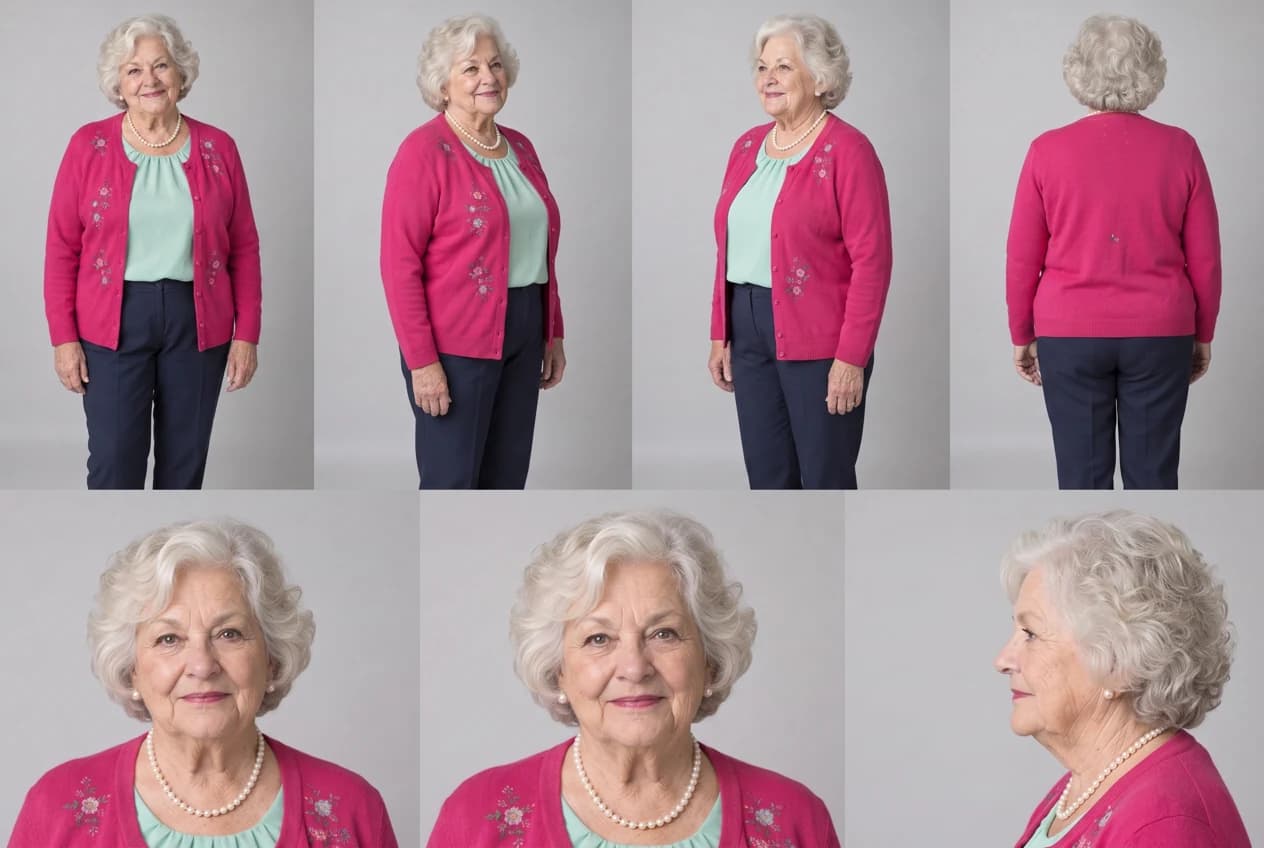
The homepage demonstration starts with one AI-created portrait of an original fictional grandmother, not a customer photo. It was generated through the site’s single-photo workflow on October 11, 2026, in Original crowd mode at 720p. The generator first created the multi-view character reference shown below, then used it to guide the video rendering.
Input portrait created for this demonstration.Watch the complete result: 23.17 seconds, 720 × 1250, original sound.
Intermediate reference generated by the backend; no additional character photos were uploaded.
The two rendered sections join at about 15 seconds. The final file was decoded and its audio compared with the prepared performance reference; the decoded audio matched. This verifies preservation of that audio for this example, not exact visual lip sync. The fictional character remains recognizable, but wrist accessories, hands and other small details can vary. Watch the full clip, including turns, foreground crossings and the join. This single result does not establish an average success rate or guarantee the same likeness from every photo.
A reference-sheet experiment, with its limits visible
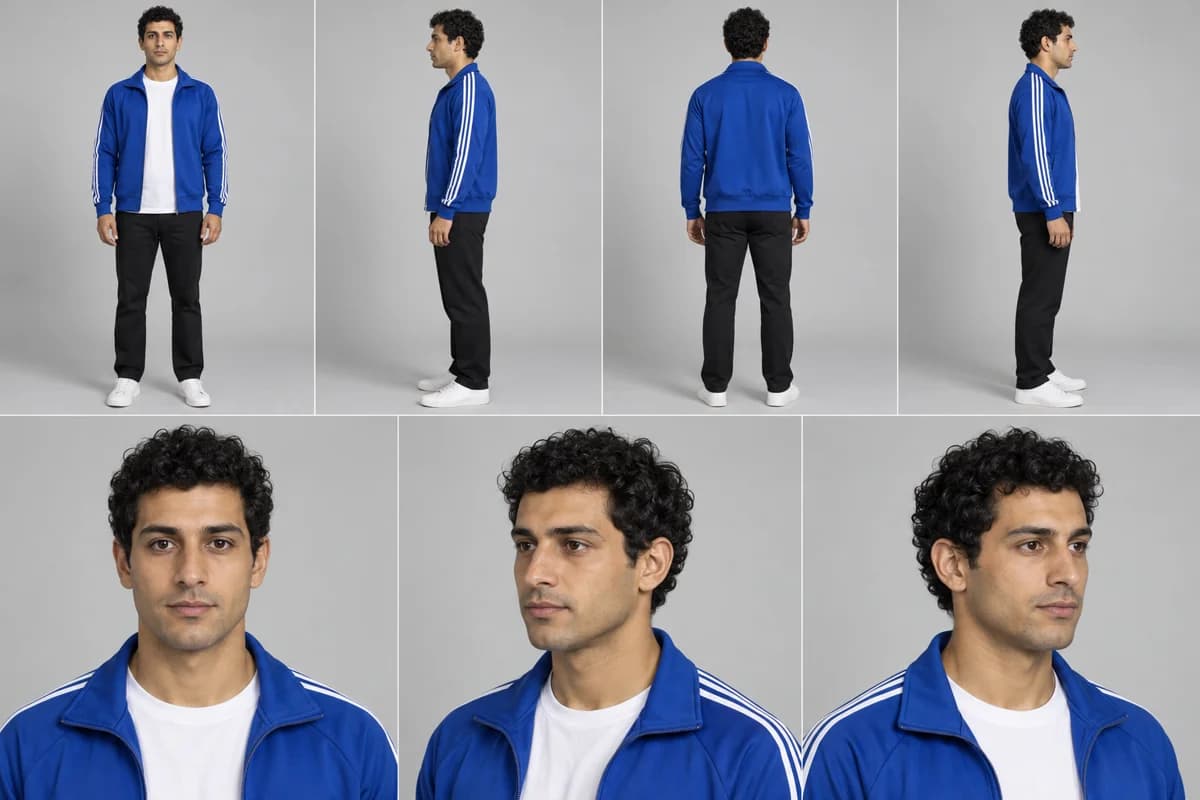
This additional Wan 3.0 generation experiment from October 11, 2026 is separate from the single-photo example above. It uses the seven-view character reference below: one curly-haired adult in a blue jacket, white shirt and dark trousers. This is the character sheet supplied to that experiment, not an original customer upload or an illustration standing in for a video result.
One character, shown from several angles. The sheet describes appearance; it does not provide the performance.
The experiment generated two sections and joined them at about 15 seconds before restoring the source audio. The final file is 23.17 seconds at 480 × 834 pixels. Its decoded audio matched the source audio in the saved check. That establishes audio preservation for this example; it does not establish perfect visual lip sync.
At the opening
Check the replacement role
The blue-jacket character takes the lead. Compare the foreground speaker holder as well as the face you wanted to change.
Around 15 seconds
Check the joined sections
The character remains recognizable, but pose and facial details can vary around the join. Seamless continuity has not been established.
Through the ending
Check turns and occlusion
Phones, arms and shoulders cross the frame. Watch whether the face and clothing remain consistent when the lead becomes visible again.
This one example is not a success-rate benchmark. Gestures, head direction, hands and mouth movement are not frame-exact. The surrounding scene is broadly retained in the reviewed samples, rather than proven unchanged in every frame.
Watch the complete result before changing the input. Identify one problem, keep the previous clip for comparison and change one input for a specific reason. A completed render can contain visual errors; successful processing does not mean a perfect likeness.
The face does not look like the photo
First compare the same angle: a front-facing photo and a turned face are different views. Check whether the photo is blurry, filtered or shadowed. A clearer photo may help, but likeness is not guaranteed. Keep the previous result so you can tell whether another attempt improved it.
The wrong person or a background face changes
The lead photo targets the rapper in the pale-pink shirt and sunglasses, behind the speaker holder. In Original mode, a changed speaker holder or bystander is an unintended edit. In Custom mode, those four assigned people are meant to change: compare each person with the photo in their labeled slot. Each input should show one subject. Check role assignment as well as face likeness.
Clothing changes after a turn or obstruction
Pause just before and after the performer turns or reappears behind a phone or shoulder. Compare the neckline, sleeve stripes and hair. Missing outfit information in the photo makes consistency harder to judge. Include the clothing you want, and avoid adding competing people or outfit collages.
Hands, gestures or the mouth look wrong
Fast hand movements and close overlaps are difficult parts of this performance. The original audio can be intact while the generated mouth movement is imperfect. Watch at normal speed and inspect the affected moment; another generation may introduce different errors rather than reliably fixing the first one.
The task is still processing or has failed
Check the existing task in the generator or My creations before submitting again. The status distinguishes preparation, rendering and sound assembly. Failed generation tasks return held credits; a completed clip with an imperfect face or hand is different from a failed task. A new generation is a separate credit request.
07 / Finish the job
Download, check the sound and share
The current generator offers an MP4 download with source sound. It does not clone your voice, insert your name into the verse or provide a separate silent-download button. Different tools and different cuts of the freestyle can have different lengths; this site’s prepared clip is about 23 seconds, not the 19-second cut used by some other templates.
Listen to the downloaded file before uploading it to TikTok, Reels or Shorts. If you add an in-app sound, mute the existing track in your editor so the beat does not play twice, then align the start and check the ending. Use audio that is available for your intended use; a trending sound in an app is not a guarantee of permission for every use.
Check the destination’s current synthetic-media labeling rules, let the person in the photo review the video, and avoid presenting the edit as a real performance they recorded. This tool does not grant rights to the original footage or soundtrack. Review our terms and privacy policy before uploading.
08 / Sources and method
What this guide is based on
Written by Bulin 47 AI. The site-specific steps, supported uploads and credit costs were checked against the current generator and generation workflow on October 11, 2026. The main example follows one portrait through the site's Original mode; the blue-jacket reference-sheet experiment is documented separately. Neither is a performance benchmark. Generation time and average success rate have not been measured here.
External tool descriptions are attributed to their providers, not independent performance tests. This guide gives no assurance that every frame, soundtrack use or upload will be accepted by another platform.
Your turn in the freestyle
Start with the photo. Check the whole performance.
The reference and instructions are prepared. Bring one clear character photo, then review the credit cost before you submit.